By default, Proxmox is set to use noVNC so copy paste is not enabled. To enable it
Using VNC Clipboard
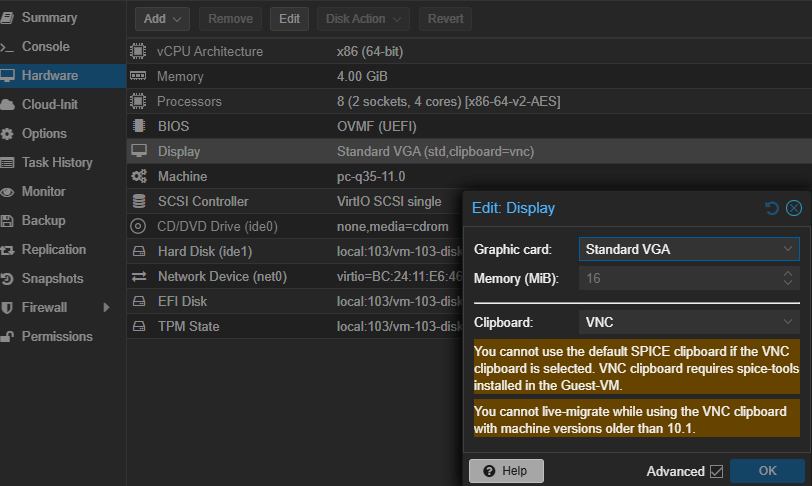
We must enable the clipboard under the Display settings:
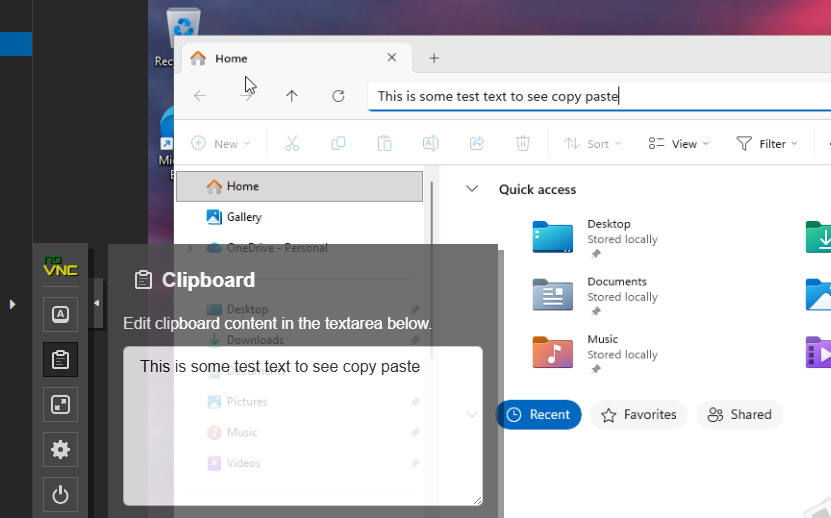
Download and insert the virtio driver file into the VM. Reboot the machine after installation of the guest tools and now whatever is in the clipboard icon in proxmox for that VM can be copied inside the VM
Using xterm.js
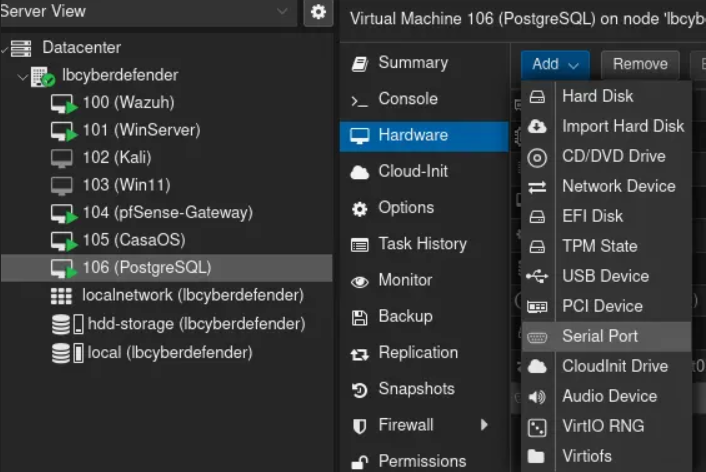
Add a Serial Port into your VM:
Start your VM and edit the following file:
sudo nano /etc/default/grub
Replace the line GRUB_CMDLINE_LINUX_DEFAULT=… with
GRUB_CMDLINE_LINUX_DEFAULT="quiet console=tty0 console=ttyS0,115200"
Save te file and Shutdown the VM.
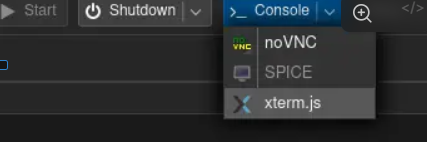
Start your VM but this time use the xterm.js option instead of the default noVNC option.
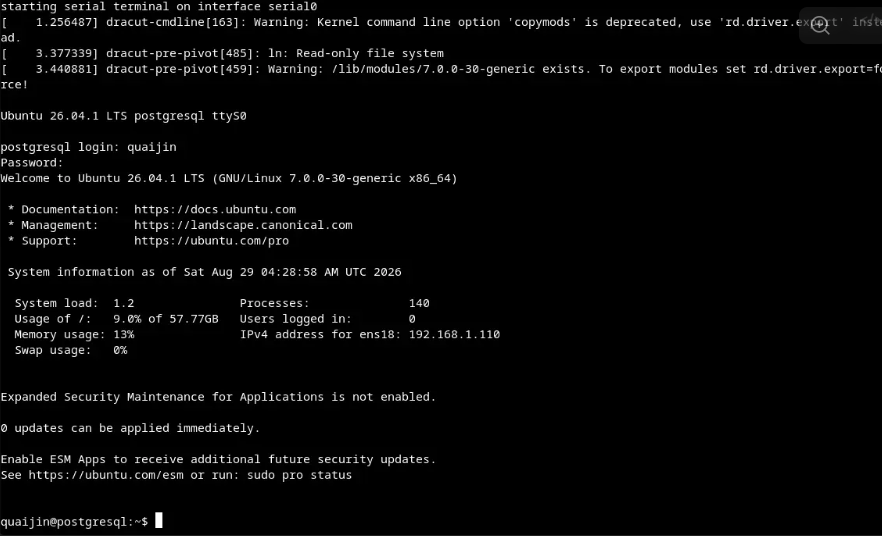
Your VM will start in a new browser window allowing you to right click to paste directly into the terminal.
Using SPICE
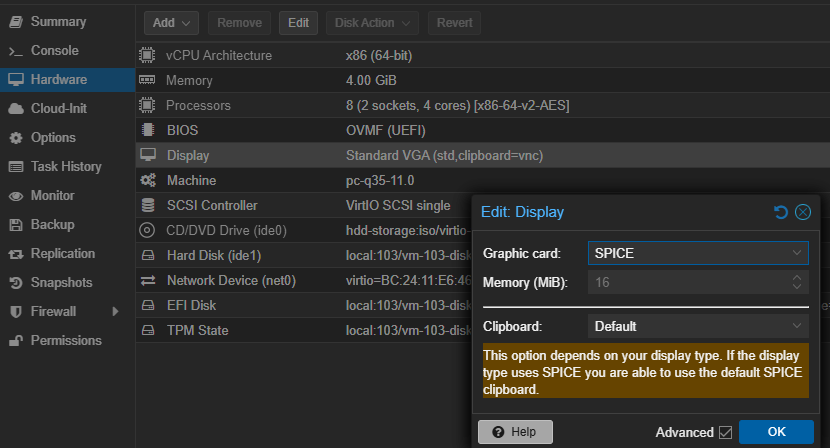
Set Display to SPICE under the VM's hardware
Download Virt-viewer and install it in the client that will be used to connect from Virtual Machine Manager
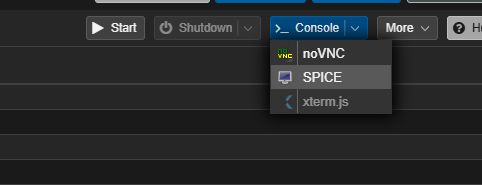
Start the VM and then select SPICE under the console button
it will download a file that will open with virt-viewer
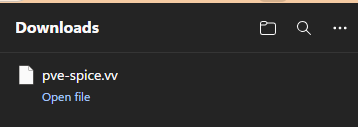
You are connected via virt-viewer and have full copy paste functionality